Arrival alerts: how geofences work and why they sometimes fail
The “arrived at school” alert is the most loved feature and the most temperamental one. Here's what happens under the hood, and how to make its life easier.

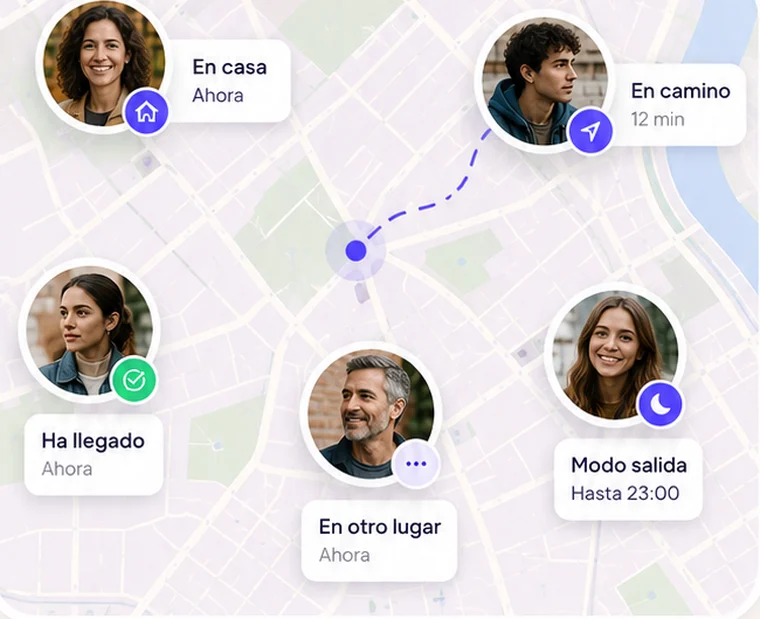
Of all the features in a family locator app, the most reassuring is also the simplest: “Lucía has arrived at school.” No map needed. And it's also the one that raises the most questions when it doesn't arrive or arrives late. Here's how it works under the hood, honestly, including its limits.
What a geofence is
A geofence is an invisible circle around a place: your home, the school, work. The app doesn't keep checking your exact position all the time (that would drain the battery). Instead, it asks the operating system to alert it when your phone enters or leaves that circle. iOS and Android have this built in and run it with very little power, mixing Wi-Fi, cell towers and GPS when needed.
Why it sometimes arrives late
- The size of the circle. Systems require a minimum radius (around a hundred meters, often more in practice) to avoid false alarms. If your home is on a narrow street and the phone places itself by Wi-Fi with a 50-meter margin, it may take a while to register as “inside”.
- The phone doesn't notice instantly. To save battery, the system checks location at intervals. When moving fast (car, subway), it can take a couple of minutes.
- Indoors. Inside a large building (a shopping center, a school with thick walls), GPS doesn't reach and Wi-Fi takes over. If the phone “thinks” it's 80 meters further away, the alert is delayed until it steps outside.
- No signal. The geofence triggers on the phone, but the alert has to travel to the server and then to your phone. Without data, it waits.
Why it sometimes doesn't arrive at all
- “Always” location permission. Without it, the system doesn't wake the app when the screen is off. It's the number one cause. Permissions explained.
- The app is asleep due to the manufacturer's battery saving (Samsung, Xiaomi, Huawei, OPPO). Guide by brand.
- Notifications turned off. The geofence triggers, the server sends the alert, but the dad's phone doesn't show it because the app's notifications are disabled.
- Low Power Mode (iPhone) or battery saver (Android) turned on.
How to set up your spots so they work better
- Place the pin where people actually enter: the school gate, not the middle of the playground.
- If the spot is large (a campus, a sports center), accept that the alert fires when crossing the perimeter, not when arriving at the classroom.
- Check permissions on the phone of the person arriving (not just yours): “Always”, no battery restrictions, notifications on.
- Check the signal at the spot: in a basement, no alert will help.
How Mi Estela explains it
On the app's Premium screen we say it plainly: “Arrival alerts at your usual spots, when there's signal and alerts are turned on.” Three spots with alerts are free forever; with Premium, you get more. And there's one detail that helps a lot: the “I've arrived” button. When a geofence is late, one tap and your people feel just as reassured. How arrival alerts work.