How to get started
Getting started with Mi Estela, step by step
Five minutes: install, create your account, create your circle, invite your people, and grant location permission. Here's everything the app will ask you and why, so nothing catches you off guard.
- Download Mi EstelaFree on the App Store (iPhone) and Google Play (Android). A family can mix both.
- Search for "Mi Estela" or use the buttons on this page.
- If someone invited you, open their link with the app already installed: the code is saved and, as soon as you create your account, you're in their circle. You can also type the 6-letter code by hand in My circle.

- Watch the video and pick who you are to your peopleWhen you open it, a half-minute video shows what Mi Estela is. Then it asks who you are: "we stay close to each other," "I'm young," or "I'm older." It's not a label—it's so the app talks to you the way you deserve.
- Young users are reassured about their privacy: only the people they choose can see where they are.
- Older users are promised simplicity: big text and a single tap to let everyone know they're fine.
- Create your accountWith Google, with Apple, or with your email and a password. Your name so your people recognize you, and your date of birth.
- Your date of birth is used to confirm you're old enough to use Mi Estela (14 in Spain; each country has its own age) and to wish you a happy birthday when the day comes.
- If you're between the minimum age and 18, you confirm that your parent or guardian knows.
- Your data lives on servers in the European Union.
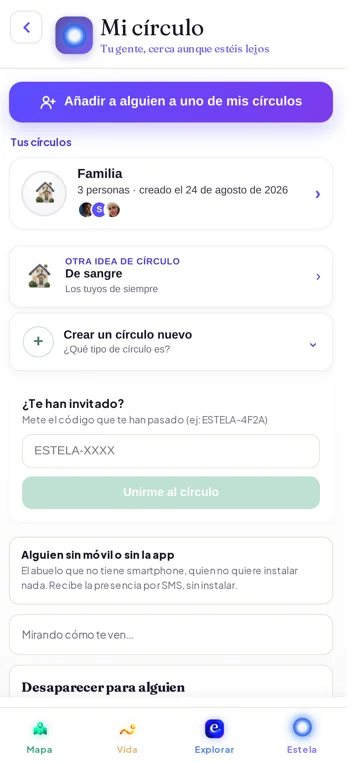
- Create your circle or join oneA circle is your people: your family, your friends, your Camino group. You create one and invite with a link or a 6-letter code. You can be in several at once.
- Inviting is one button: share via WhatsApp, text, or the code.
- Each circle is independent: what you share in one isn't visible in another.
- Nobody adds you to a circle without your say-so.
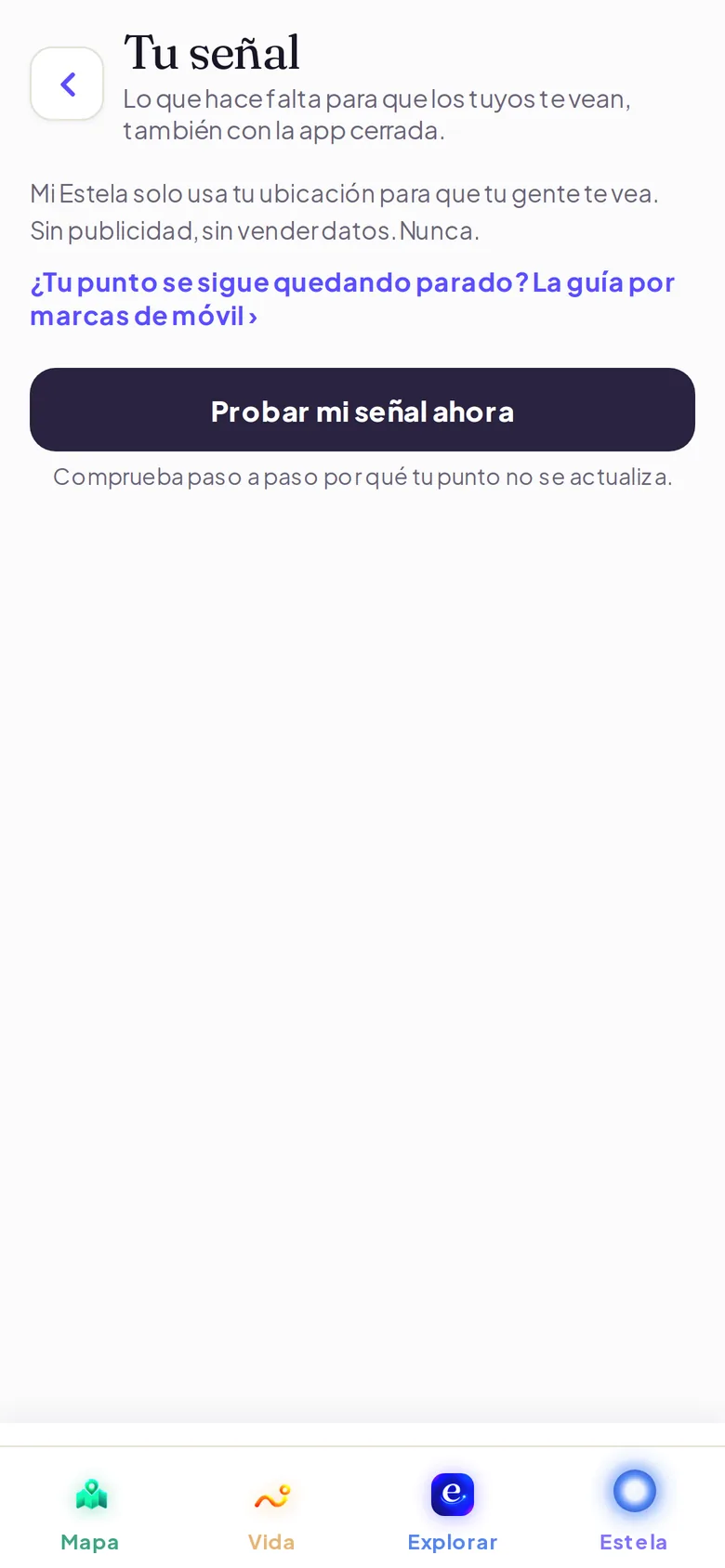
- Set location permission to "Always"This is the step that makes the difference. With "Always," your people know you've arrived even if you don't open the app. With "Only While Using," the phone cuts location when you close it.
- On iPhone: Settings › Privacy & Security › Location Services › Mi Estela › Always + Precise Location.
- On Android: from Android 11 on, "Allow all the time" can only be turned on in Settings. Mi Estela takes you to the screen; you do the tap.
- On Samsung, Xiaomi, Huawei, or OPPO there's one more step (keeping the app from being put to sleep): check your guide.
- Choose how you want to appearPrecise (your exact spot), blurred (just the area), or Ghost (invisible, if you're an adult). Change it in one tap, whenever you want. What you see of someone else is what they see of you.
- You can go Ghost and still send your "I'm okay."
- Minors share at least their area.
- You can share your battery level so nobody panics if your phone dies.
- Save your usual spotsHome, school, work. Mi Estela lets your circle know when someone arrives. Three spots with alerts, free forever.
- Alerts go out when there's signal and notifications are turned on.
- With Premium, more spots with alerts.
- Now go live: the map, the Nook, and EstelaYou see your people on the map with their photo and whether they're home or on the way. In the Nook you write, call, and video-call each other. And you can ask Estela where to meet up or what's nearby.
- One tap on "I've arrived" or "I'm okay" and your people can breathe.
- If something happens, the SOS alerts your circle with your location and puts 112 one tap away.
What your phone asks for, and why
Permissions, explained with no fine print
Location "Always"
So your people know you've arrived without you even opening the app. With "Only while using," the phone cuts off location when you close it. You also choose how you appear: precise, by area, or invisible.
Notifications
This is where arrival alerts, your people's SOS, call ringtones, and heartbeats come through. Without them, Mi Estela goes silent.
Unrestricted battery (Android)
So the system doesn't put the app to sleep when the screen is off. On Android, Mi Estela opens the system's own dialog; on Samsung, Xiaomi, Huawei, or OPPO there's one extra step.
Camera and photos
To take a photo and instantly share it with your people, or set your profile picture. And to save to your Photos only the image you choose. Never in the background.
Microphone and voice
To talk to Estela (what you say gets turned into text), for your voice notes, and for calls. Never to "listen to surroundings"—that doesn't exist in Mi Estela.
Contacts
Only if you ask, so you can choose who to invite to your circle. Your contacts are read on your phone and never sent anywhere. You can invite without sharing them: just use a link or a code.
Movement
The motion sensor is only used to know when you start moving and to save battery when you're still. Never to watch you or measure your physical activity.
A nice touch
The sound of Mi Estela
The first time you reach the welcome screen, you hear "the rising air": a breath that sweeps through and a tiny bell chime at the end. It's the sound of a trail: you hear it when someone sends you one, when you complete a stroke in One Go, or when someone gets home. Just once, to welcome you in — it's a greeting, not a doorbell.
Turn the volume up a little: it's soft on purpose.
Follow us: we show the app in action on video
Short videos of each feature, the latest updates, and what people who use it tell us.
Real screenshots
What it looks like inside
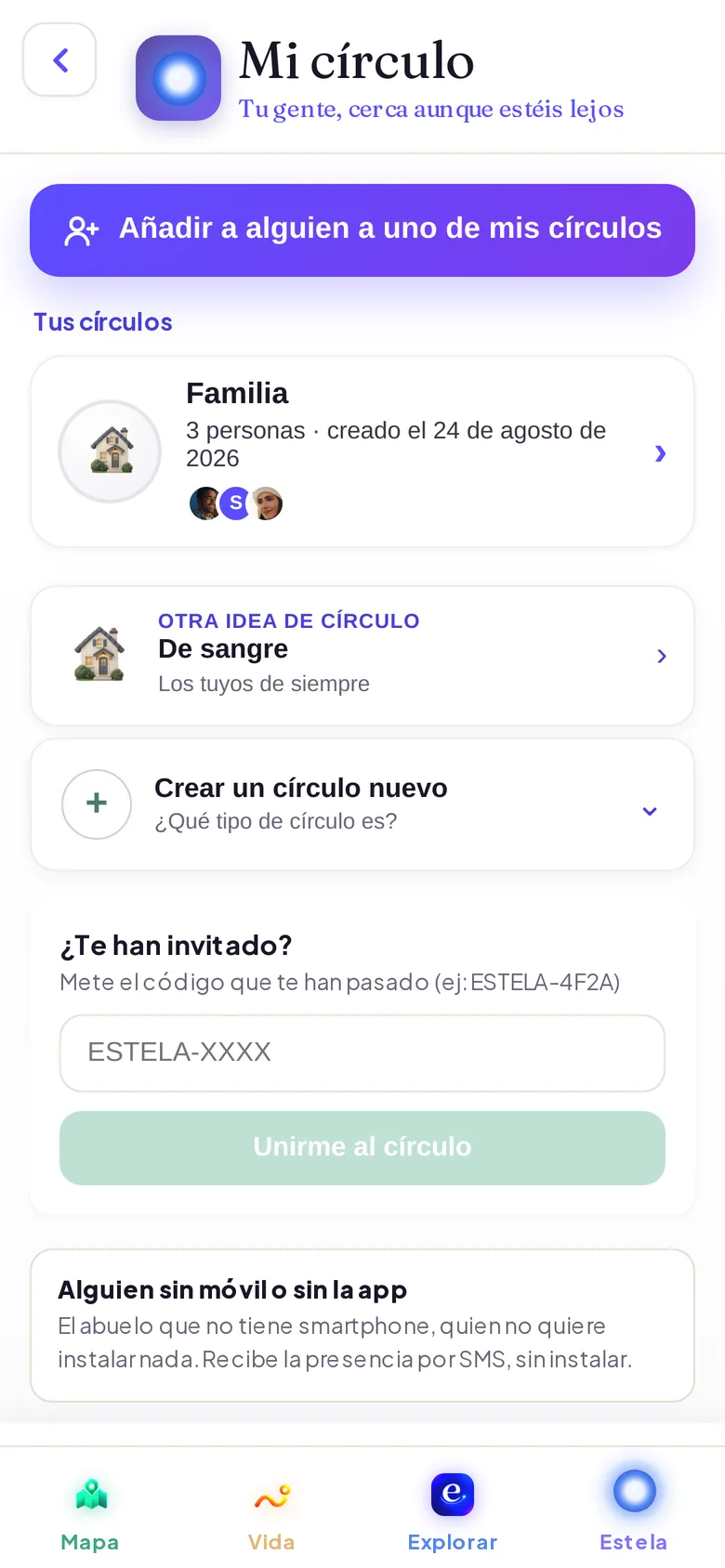
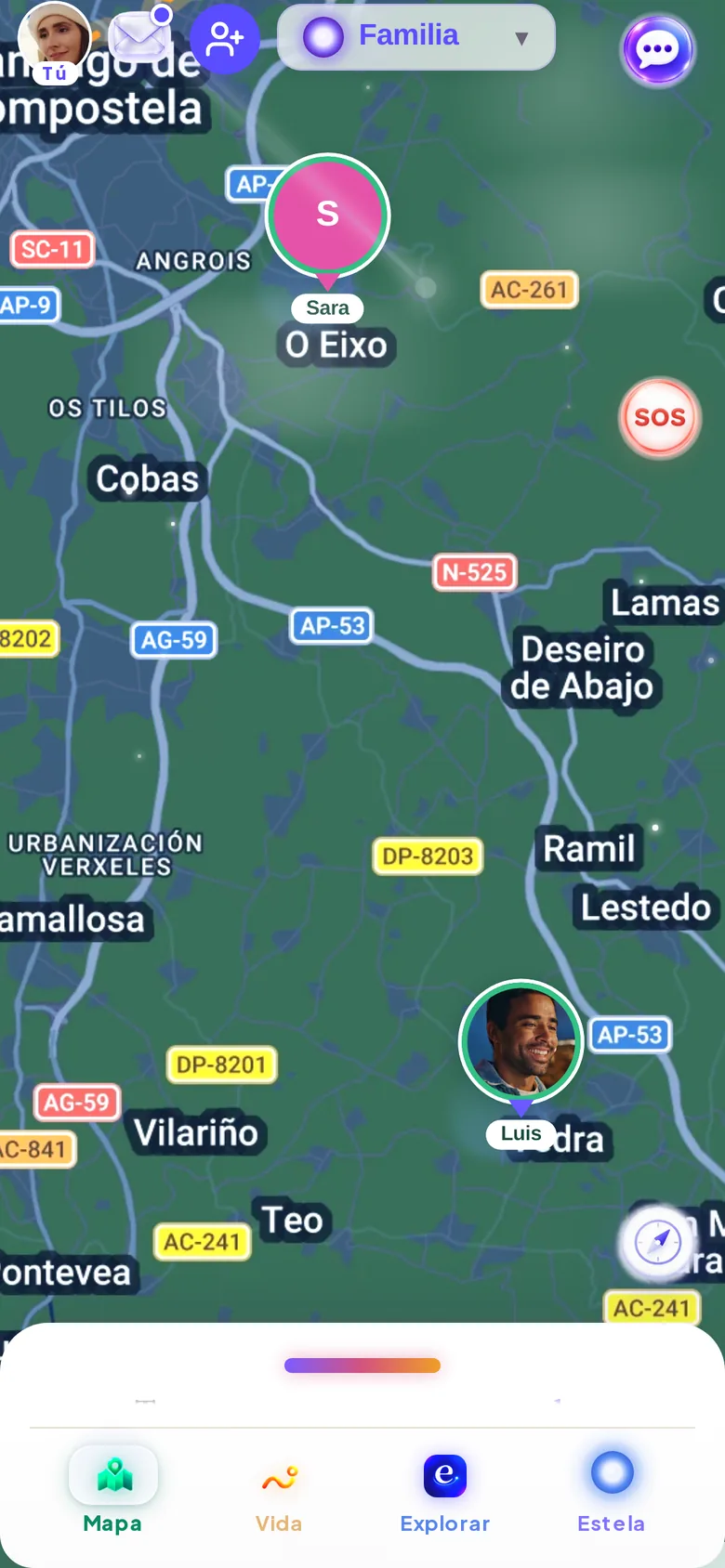
The screenshots are from the app in Spanish; the interface is in your language if your phone is set to it (see the note below).
On video
This is Mi Estela, on video
The ad, the reel, and the short videos. YouTube, Instagram, and TikTok won't load until you tap (only the video thumbnail).
When a video loads, YouTube, Instagram, or TikTok may set their own cookies. More info.
We answer your questions
Frequently asked questions
How long does it take to get started?
About five minutes: install, create your account, create your circle, and invite. The "Always" permission is the step most people skip—and the one that matters most.
Does my whole family need to install the app?
For the map, alerts, chat, and calls, yes. If someone outside your circle just needs to follow along for a while, a temporary link that opens in the browser is enough.
Can I invite someone on Android if I'm on iPhone?
Yes. Mi Estela is in both stores and everyone shows up in the same circle.
What happens if I don't give the "Always" permission?
Mi Estela still works, but your people will only see your updated location when you open the app. Arrival alerts need the "Always" permission.
Do I need a credit card to get started?
No. The download and the essentials are free forever. Premium is optional and comes with a 14-day trial.

Five minutes and your people, close by.
Download it free, create your circle, and invite one person. The rest just happens.
Free to start · No ads · We never sell your data