While Using, Always, Precise: Location Permissions Explained
The permission prompt has four options, and nobody knows what changes between them. Here's what changes on each system, and why a presence app asks for "Always."

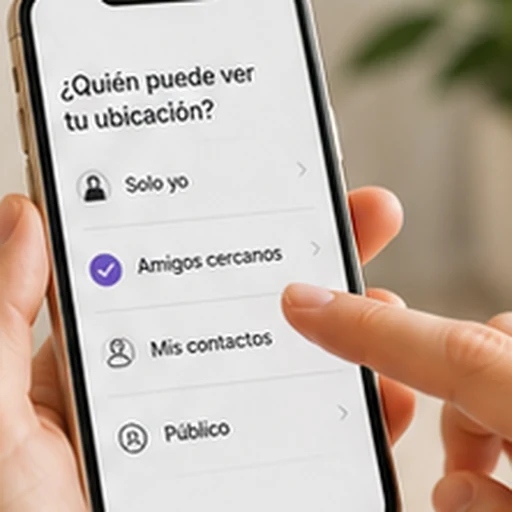
When you install a location app, your phone asks how you want to give it access to your location. The options seem to say the same thing in different words, but they don't. Here's each one, on iPhone and on Android, and what happens with an app like Mi Estela depending on what you choose.
On iPhone
- Never: the app doesn't know where you are. Your people can't see you on the map.
- Ask Next Time Or When I Share: it asks you every time. This works for apps you use now and then; for a presence app, it's a nuisance.
- While Using the App: it locates you only while the app is open on screen. As soon as you close it, iOS cuts off location. The result: your family sees you where you were the last time you opened the app, and arrival alerts won't work.
- Always: the app can receive your location even when it's closed. This is what makes arrival alerts and "home since 8:43" possible.
There's also the "Precise Location" switch: when it's off, iOS gives an approximate position (several kilometers). For a family app, turning it off makes little sense, because Mi Estela already lets you choose "area only" inside the app, person by person, which is much more useful.
Path: Settings › Privacy & Security › Location Services › Mi Estela. Apple explains each option on its location services page (link at the end). And when an app uses your location, iOS shows an arrow in the status bar: that's normal.
On Android
- Don't allow: nothing.
- Ask every time (or "Allow only this time"): every time.
- Allow only while using the app: same as on iPhone, it stops when you close the app.
- Allow all the time: location in the background too.
And here's the catch that confuses everyone: since Android 11, "Allow all the time" doesn't appear in the prompt inside the app. Google decided this in 2020: the background permission can only be granted on the system Settings screen. That's why Mi Estela takes you to that screen and asks you to select it yourself. It's not that the app doesn't know how to ask for it: it simply can't.
Path: Settings › Location › App location permissions › Mi Estela. With the "Use precise location" switch. Heads up on one detail that Google explains: if you grant only approximate location while in use, background location will be approximate too.
And also, battery
On Android, the permission isn't enough: the system can "optimize" the app and put it to sleep. You need to set the app's battery to "Unrestricted," and on Samsung, Xiaomi, Huawei, or OPPO, it takes a couple more taps. You'll find it phone by phone in the guides by phone.
What if I don't want to allow "Always"?
You can. Mi Estela works with "while using": your people will see your last position with the time it was updated, and you can tap "I'm okay" or "I've arrived" manually whenever you open the app. What you lose is the automatic arrival alerts. It's a legitimate choice; you just need to know what changes.
Revoking the permission
You can always remove it on the same Settings screen, without uninstalling anything. And inside Mi Estela, with one tap, you can switch to area-only mode or Ghost Mode (invisible, if you're an adult). How privacy works.
Sources
- Apple: About Location Services & Privacy
- Google: Choose which apps can use your location
- Android Developers: Background location (Android 11)