How to Share Location Between iPhone and Android — No Drama
Your mom has a Samsung, your daughter has an iPhone, and you want to see them both. Here are the options that actually work, with their limits.

Most families are mixed when it comes to phones: someone has an iPhone, someone has an Android. And that's where the headaches start, because the built-in tools on each phone don't talk to each other. Apple's Find My only works between Apple accounts; Google Family Link only covers Android devices. Here are the options that actually work across both worlds.
Option 1: Google Maps
Google Maps is on both platforms and shares location for free between Google accounts: for one hour or "until you turn it off," and you can set up to five arrival or departure alerts per person (the other person gets a notification that you've created them). You can also send a link to someone without an account, valid for up to 24 hours. It's the most complete free option, but it's not a circle: there are no faces on a shared map, no shared battery level, no SOS, no chat. Everyone shares with everyone individually.
Option 2: WhatsApp
WhatsApp's real-time location works in any chat—15 minutes, 1 hour, or 8 hours—end-to-end encrypted. Perfect for "I'm on my way." Useless for "let me know when she gets home every day," because you have to remember to share every time and it expires after 8 hours.
Option 3: A circle app
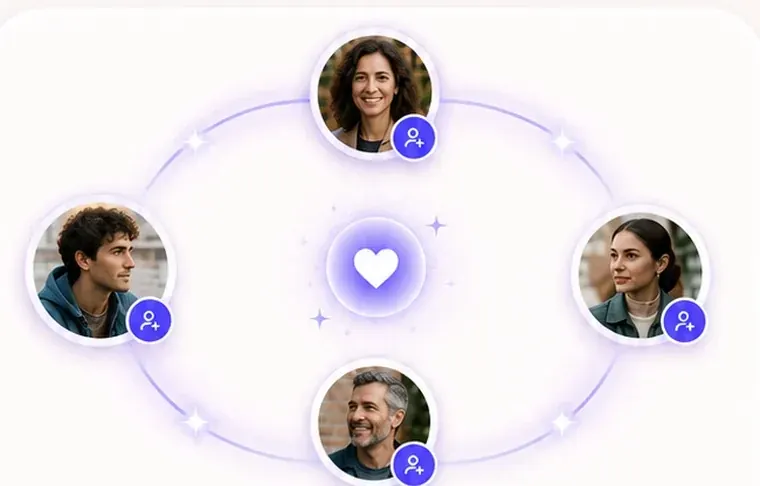
Family locator apps (Life360, GeoZilla, iSharing, Mi Estela) are available on both app stores and put everyone on the same map, with arrival alerts, battery info, and SOS. The difference between them comes down to ads, what they do with your data, whether they're symmetrical or have a supervisor role, and the price. We compare them with sources in our comparisons.
What's different between iPhone and Android
Once the app is installed, the experience is the same, but the permissions aren't:
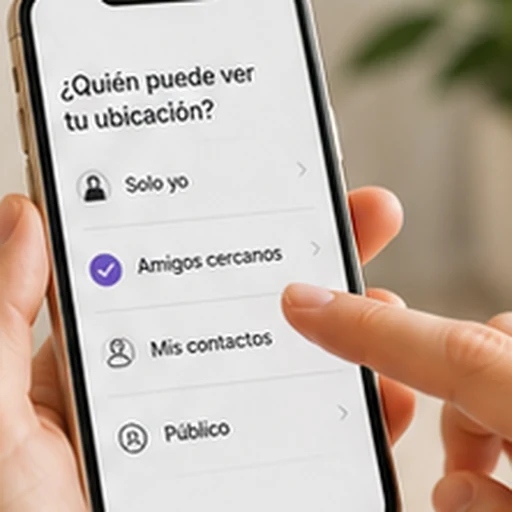
- iPhone: Settings › Privacy & Security › Location Services › the app › "Always" and "Precise Location." And keep "Background App Refresh" turned on. That's it.
- Android: "Allow all the time" is set in Settings (since Android 11 you can't do it from within the app), plus battery set to "Unrestricted." And on Samsung, Xiaomi, Huawei, or OPPO, you also need to exclude the app from the manufacturer's battery saver.
So when "Grandma's Android disappears at night" but the iPhone doesn't, it's not that the app works worse on Android—it's that the manufacturer put the app to sleep. We have a guide for each brand with the exact steps.
Video calls between iPhone and Android
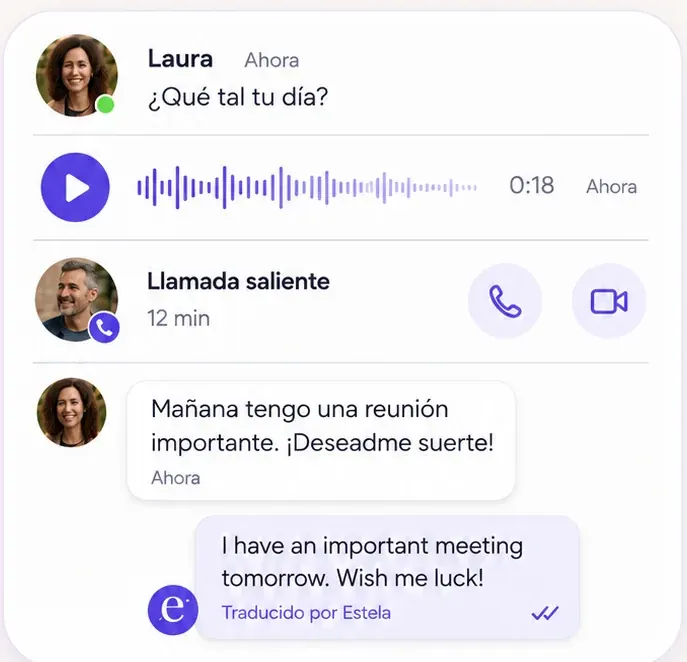
FaceTime is Apple-only and Google Meet requires an account. If you want Grandma with her Samsung to video-call her granddaughter on an iPhone without thinking twice, the easiest way is for the circle app to include calls. In Mi Estela, chat, voice calls, and video calls are all built into the app, work between any phone, and are free; the ringtone sounds even if the app is closed.
In a nutshell
- To share for a bit: WhatsApp or Google Maps.
- To get the whole family (iPhone and Android) on the same map with alerts, SOS, and video calls: a circle app.
- On Android, the "Allow all the time" permission and the manufacturer's battery saver are behind 90% of the problems.
If this is your situation, we have a page just for you: families with iPhone and Android.